
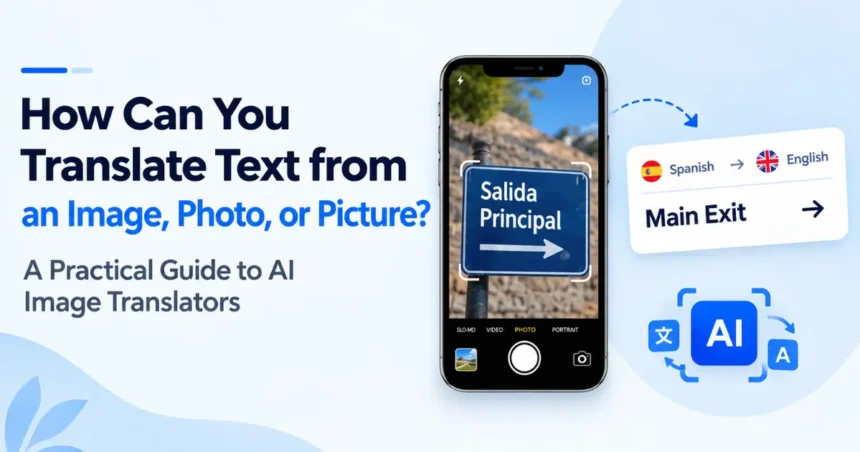
How Can You Translate Text from an Image, Photo, or Picture? A Practical Guide to AI Image Translators
You’re staring at a photo of a menu, a warranty card, or a sign, and none of the words mean anything to you. Typing it into a translator isn’t an option because you can’t read the script well enough to spell it, let alone type it. This is the exact situation an image translator was built to solve, and if you want to translate image text accurately, the process is far simpler than most people expect once you know how it actually works.
- How Can You Translate Text from an Image, Photo, or Picture? A Practical Guide to AI Image Translators
- Method 1: Use a Dedicated Image Translator
- Method 2: Use Your Phone’s Camera Translation Mode
- Method 3: Screenshot and Upload
- How the AI Behind This Actually Works
- What to Look for in a Good Image Translator
To translate text from an image, photo, or picture, upload it to a tool that combines optical character recognition with a translation engine. The tool reads the text in the photo, converts it into machine-readable characters, then translates that text into the language you choose, usually in a few seconds and without any typing.
Method 1: Use a Dedicated Image Translator
The most reliable way to translate image content is through a tool built specifically for this task. You upload the image, the platform extracts the text automatically, and it returns a translation almost instantly.
This works because the tool runs two processes behind the scenes. First it detects and reads the text using OCR, then it passes that text to a translation model that understands context rather than swapping words one at a time. Tools like Photo Translator follow this exact approach, letting you upload a photo or screenshot and get translated text back without creating an account or installing anything.
This method works well for menus, product labels, printed signs, scanned pages, and screenshots taken from apps or websites in another language.
Method 2: Use Your Phone’s Camera Translation Mode
Most major translation apps now include a live camera mode that lets you point your phone at text and see a translation overlaid in real time. This is useful when you’re standing in front of something, like a street sign or a shop window, and want an instant read without taking a photo first.
The trade-off is accuracy. Live camera translation processes text on the fly, which means it sometimes struggles with dense paragraphs, small fonts, or text at an angle. It’s excellent for quick single-line translations but less reliable for anything longer or more detailed, where a proper uploaded-photo approach tends to perform better.
Method 3: Screenshot and Upload
If you already have a screenshot saved, whether from a chat app, a website, or a scanned document, you don’t need to retake the photo. Most image translators accept screenshots directly, and this is often the most accurate method since screenshots are usually sharper and better lit than a photo taken on the move.
This method is particularly useful for translating error messages, app interfaces, or foreign-language documents that were shared with you digitally rather than encountered in person.
How the AI Behind This Actually Works
It helps to understand what’s happening under the hood, especially since this affects why some translations read naturally and others feel stiff or literal.
Modern image translation relies on two layers of AI working together. The first layer, OCR, identifies where text sits in an image and converts the visual shapes into digital characters. The second layer is a language model that translates that text with an understanding of grammar, context, and phrasing rather than a rigid word-for-word substitution.
This second layer is closely related to the large language models now powering most modern AI tools. If you’re curious about how these models actually process and generate language, Aitude’s breakdown of how LLMs work is a solid explainer for understanding the mechanics behind the translation quality you’re seeing in these tools.
Step-by-Step: Translating a Picture the Right Way
- Take or select a clear photo. Good lighting and a straight angle matter more than any setting inside the tool itself.
- Choose a tool built for image-based translation, not a plain text box, since typing a description of the image defeats the purpose.
- Upload the photo or screenshot and select your target language if the tool doesn’t auto-detect it.
- Review the output against the image, checking that headers, lists, or table structures were preserved rather than flattened into one block of text.
- Double-check anything specific, such as prices, dates, dosages, or legal terms, since these details carry the most risk if mistranslated.
Common Mistakes That Reduce Translation Accuracy
Cropping too tightly: Cutting out surrounding text removes context that helps the AI translate a phrase correctly, especially with menu items or signage that relies on nearby words for meaning.
Uploading blurry or angled photos: OCR accuracy drops sharply with poor image quality, and a single misread character can shift the meaning of an entire sentence.
Assuming every language performs equally well: Some languages and scripts, particularly ones with complex characters or heavy contextual grammar, are still more prone to translation errors than widely used European languages.
Skipping a manual check on important text: Automated translation is strong for everyday content but should be treated as a helpful first pass, not a final answer, for anything legal, medical, or financial.
What to Look for in a Good Image Translator
- Accurate OCR across different fonts, handwriting styles, and non-Latin scripts.
- Context-aware translation rather than strict word-by-word output.
- Layout preservation, so the translated version stays easy to compare against the original.
- No mandatory sign-up, since most image translation needs are quick, one-off tasks.
- Clear privacy practices, particularly around whether uploaded images are stored or discarded after processing.
Frequently Asked Questions
Can I translate text from a photo without typing anything?
Yes. Upload the photo to an image translator, and OCR combined with a translation engine handles the rest automatically.
What’s the difference between a camera translator and uploading a photo?
A live camera mode gives instant results for short text like signs, while uploading a photo or screenshot generally produces more accurate results for longer or denser text.
Why does my translated picture look correct but read strangely?
This usually happens when text is translated line by line without considering nearby context, which strips out meaning that depends on how sentences relate to each other.
Is it safe to upload photos of personal documents to translate them?
It depends on the platform. Choose tools that clearly state they discard the image after processing rather than storing it indefinitely.
Do image translators work for handwritten text?
Accuracy is improving but still varies. Clear, consistent handwriting translates far more reliably than fast or stylized handwriting.
Final Thoughts
Learning how to translate image text is no longer a workaround involving retyping or guesswork. It’s a straightforward two-step process: read the text with OCR, then translate it with context-aware AI. Once you understand that, choosing the right method, whether that’s a dedicated image translator, a live camera mode, or a simple screenshot upload, comes down to matching the tool to what you’re actually trying to read.

Sandeep Kumar is the Founder & CEO of Aitude, a leading AI tools, research, and tutorial platform dedicated to empowering learners, researchers, and innovators. Under his leadership, Aitude has become a go-to resource for those seeking the latest in artificial intelligence, machine learning, computer vision, and development strategies.