

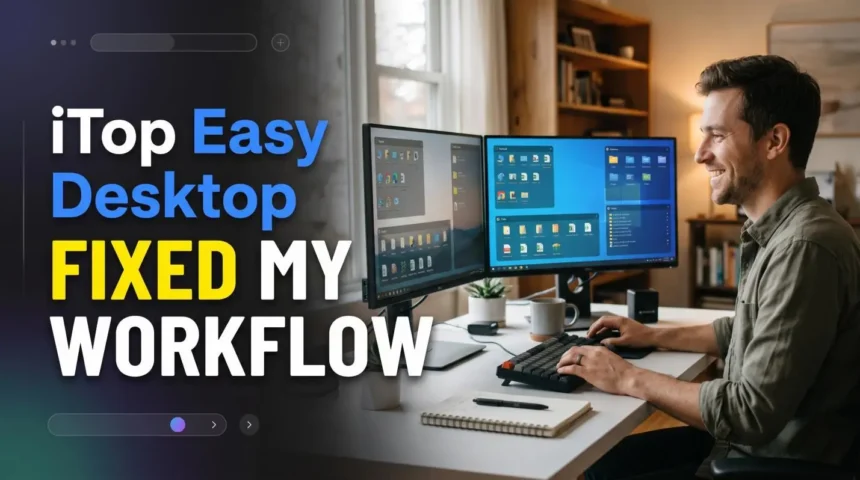
Everything I was supposed to do on my computer seemed to find its place on my desktop because I did not have time to properly organize all those things. Screenshots, downloads, work files, folders, and other things were lying all around on my screen. The reason for this situation was clear – I had been doing this for months.
- Why My Desktop Needed More Than a Basic Cleanup
- I Started by Giving My Files Their Own Boxes
- I Used Box Rules to Keep Everything Organized
- I Added Widgets and AI Tools to Keep Everything at My Fingertips
- I Personalize My Screen with Dynamic Wallpapers and PawPal
- When I Needed to Focus, I Could Hide Everything
- I Saved My Setup With Snapshot
- My Desktop Finally Became Part of My Workflow
- FAQs
- 1. What is iTop Easy Desktop?
- 2. How does iTop Easy Desktop help organize desktop files?
- 3. What are Box Rules in iTop Easy Desktop?
- 4. Can iTop Easy Desktop hide desktop icons?
- 5. Does iTop Easy Desktop support desktop customization?
- 6. What is the Snapshot feature in iTop Easy Desktop?
- 7. Can iTop Easy Desktop improve productivity?
- 8. Who should use desktop organizer software?
It is difficult to find any necessary file when you need it. I used to try organizing my desktop by creating folders manually, but the result was the same after a few days. That was when I decided I needed proper desktop organizer software instead of another temporary cleanup.
Why My Desktop Needed More Than a Basic Cleanup
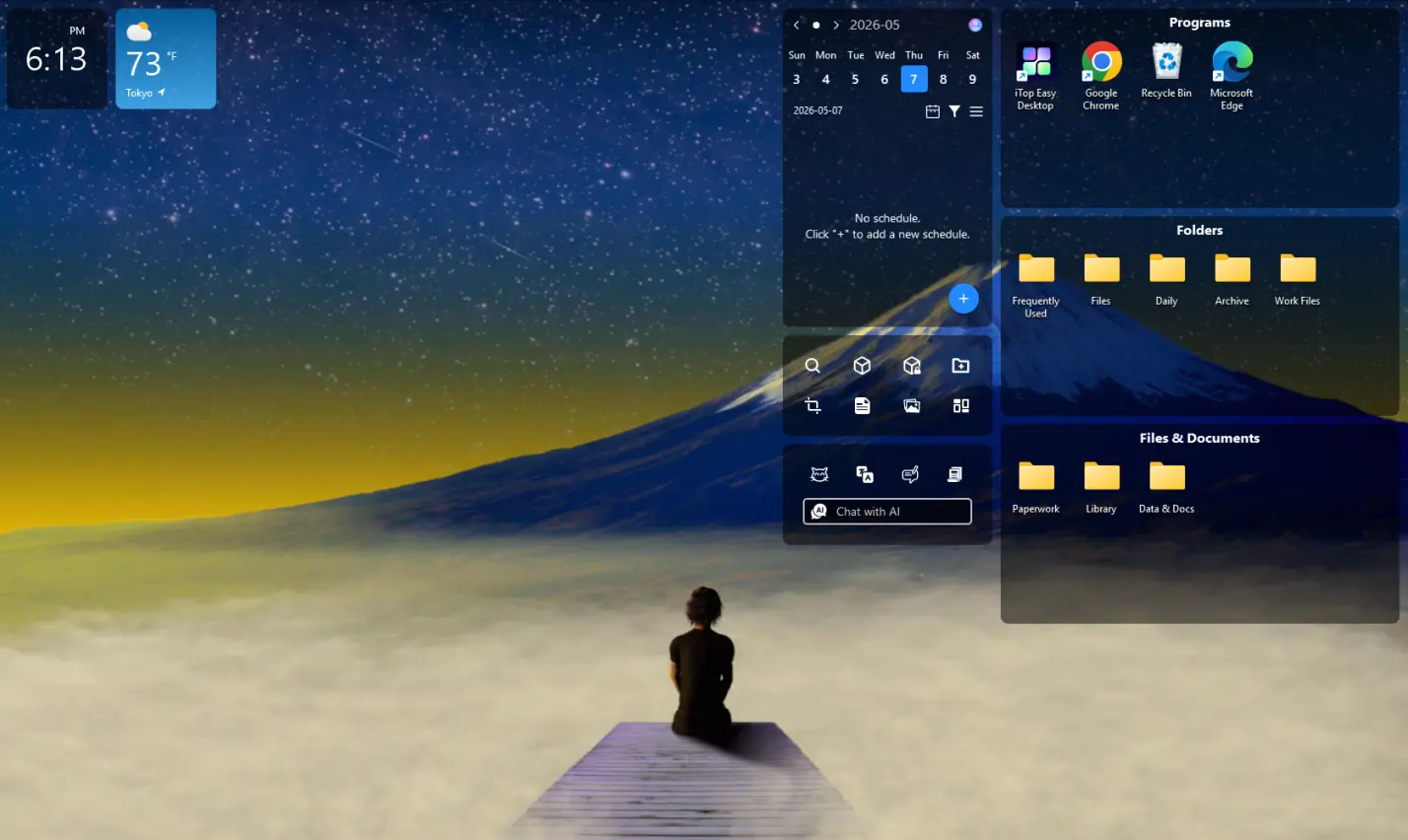
The first step to clean up the desktop is to delete old files or consolidate everything into one folder. This would clear the desktop, but it would not help with the main issue.
The thing was that I still had to be able to get access to my files, programs, and folders easily. Simply hiding everything just meant that I would have to look for the necessary file in some other place.
I want an organized desktop that remains usable. It had to stay organized even after I finish organizing the desktop. This is why I became interested in iTop Easy Desktop and its Boxes function.
I Started by Giving My Files Their Own Boxes
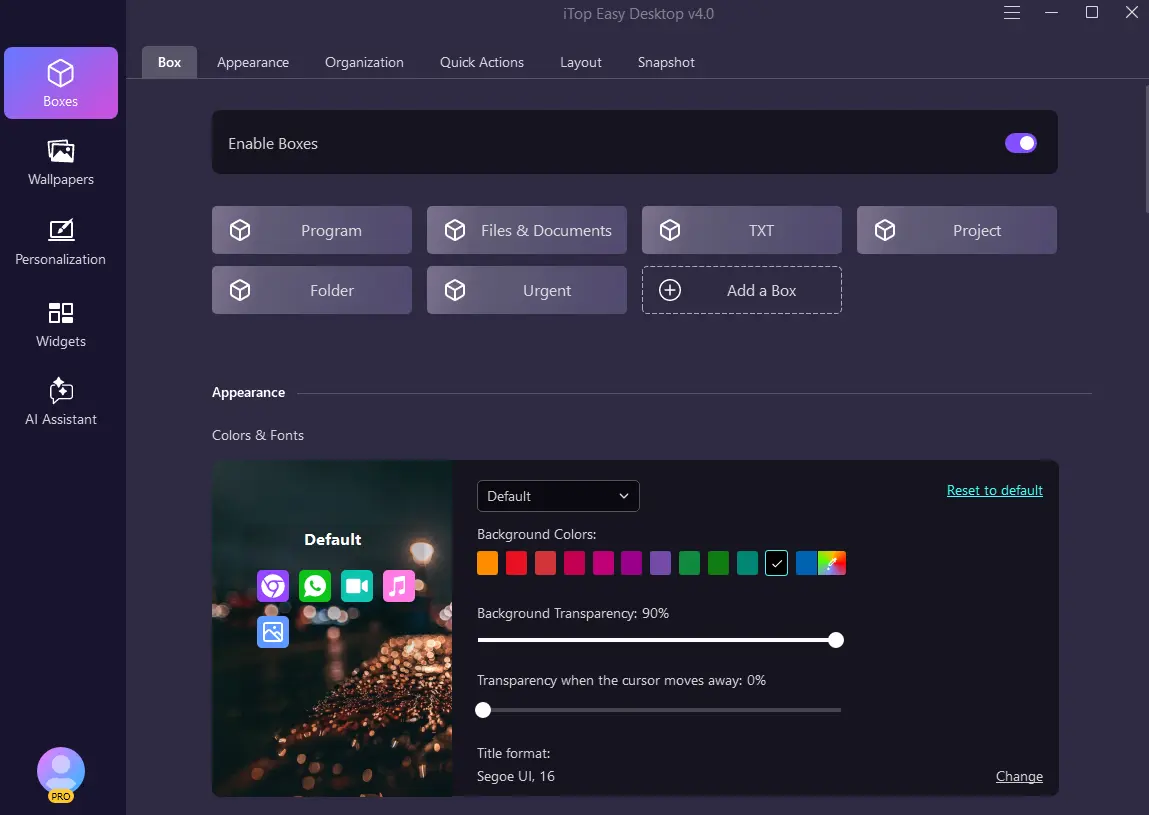
To begin, I needed to turn on the “Boxes” feature. It was right then that I realized that my desktop was starting to make sense with iTop Easy Desktop. No longer did I need to stick all icons in one location. Instead, I made individual boxes according to the type of file that I was viewing. I put all my work-relevant files together, all the programs together and all my most-used folders in another box.
I did not have to go through the tedious task of searching my entire desktop to see where things ought to be. I only placed them in their correct position.
My desktop was still packed with all of the files I needed, but no more clutter files.
This was the first time I learned what it was like to use desktop organizer software. Did not hide my files or make them hard to find. I was arranging them.
I Used Box Rules to Keep Everything Organized
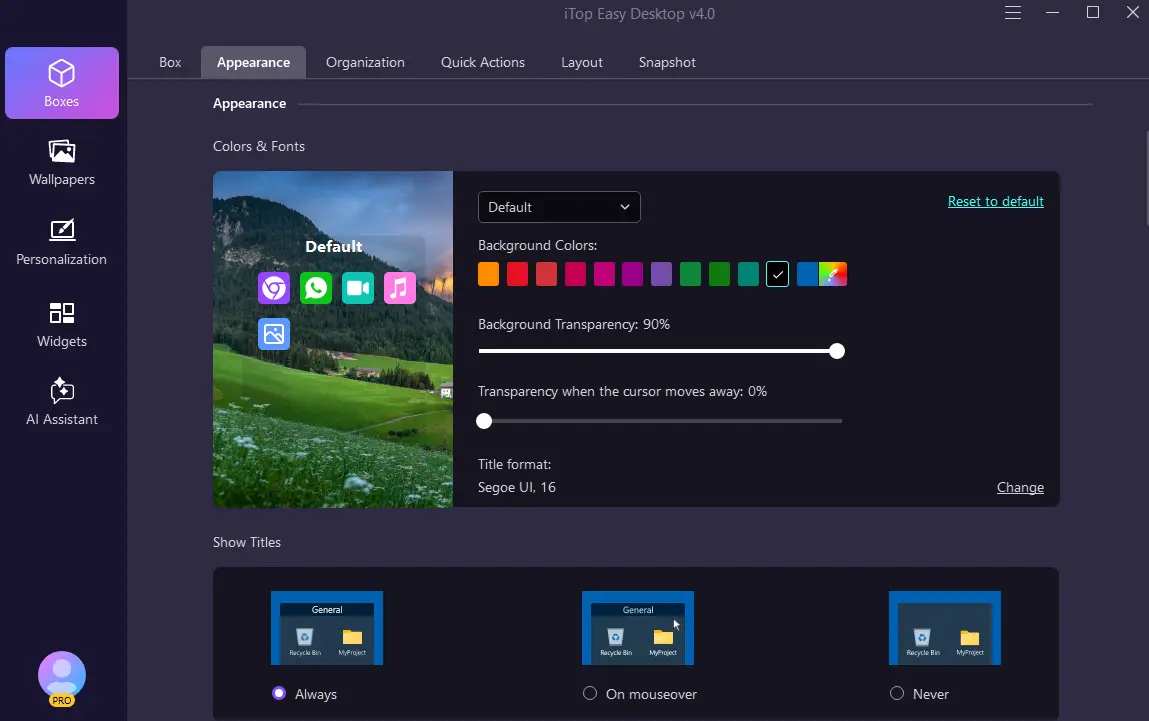
It was then that I understood how quickly I could find myself in the same mess again. I get new files nearly every day, and it was clear that I would not be able to organise each one of them manually. Here came the utility of Box Rules.
With the help of those rules, I could ensure that files would stay in the right place and I would not have to drag them every time. It meant that the system I created would work with any newly downloaded file.
In my opinion, it was much more helpful than just cleaning the desktop once. The idea was to prevent the clutter from coming back again. Thanks to those rules, I would not have to stop and deal with some new stuff every time it appeared on my desktop.
I Added Widgets and AI Tools to Keep Everything at My Fingertips
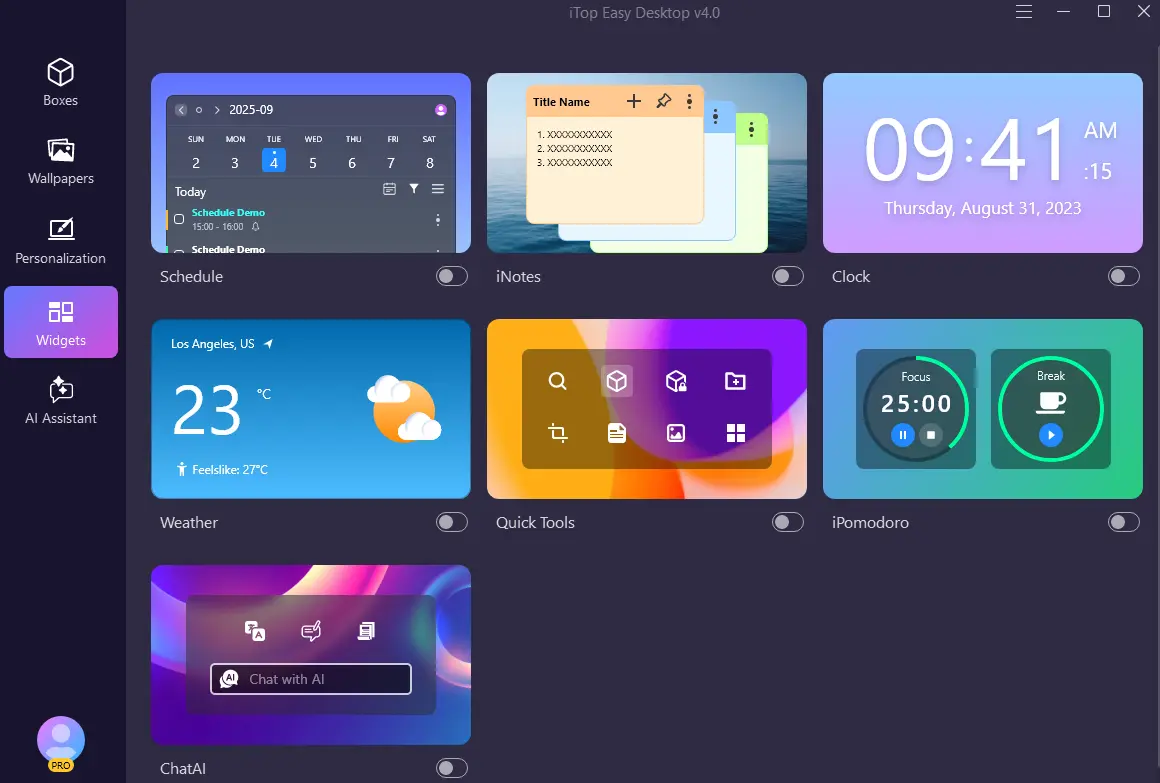
Beyond organizing files into boxes, I wanted a workspace that felt genuinely smart and interactive. This is where the Widgets and advanced AI tools in iTop Easy Desktop completely changed how I interact with my screen. Instead of opening separate apps for every little task, I pinned useful widgets directly to my desktop for instant access to weather, calendar schedules, and system status. Even better, the built-in AI tools helped streamline my daily routine by offering smart assistance, quick text generation, and fast translations right from my desktop layout, cutting down extra clicks and keeping me completely focused.
I Personalize My Screen with Dynamic Wallpapers and PawPal
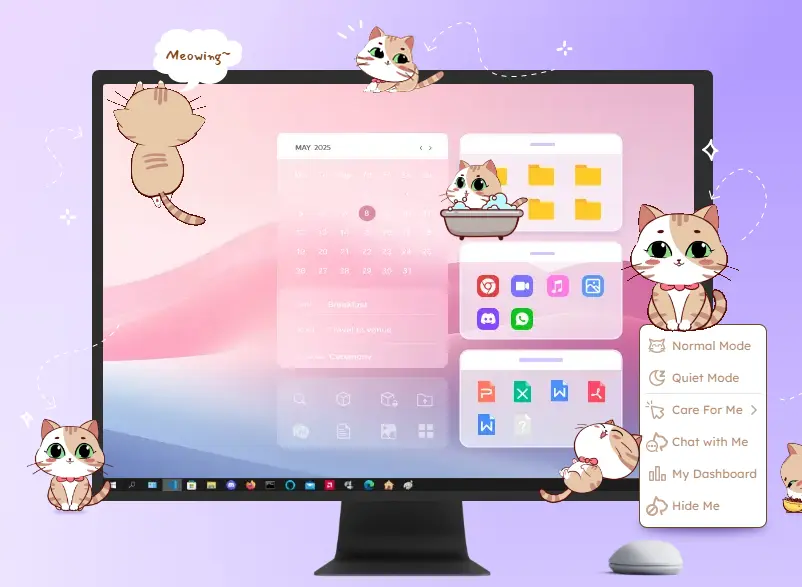
An organized desktop shouldn’t look boring or clinical. The live Wallpaper feature allowed me to switch up my screen’s background effortlessly, giving my workspace a fresh, vivid look that matched my mood. To make the experience even better, I enabled PawPal—a delightful virtual desktop pet companion that hangs out on screen while I work. Having PawPal around brought a fun, interactive spark to my desktop, making long study or work sessions feel noticeably less monotonous.
When I Needed to Focus, I Could Hide Everything
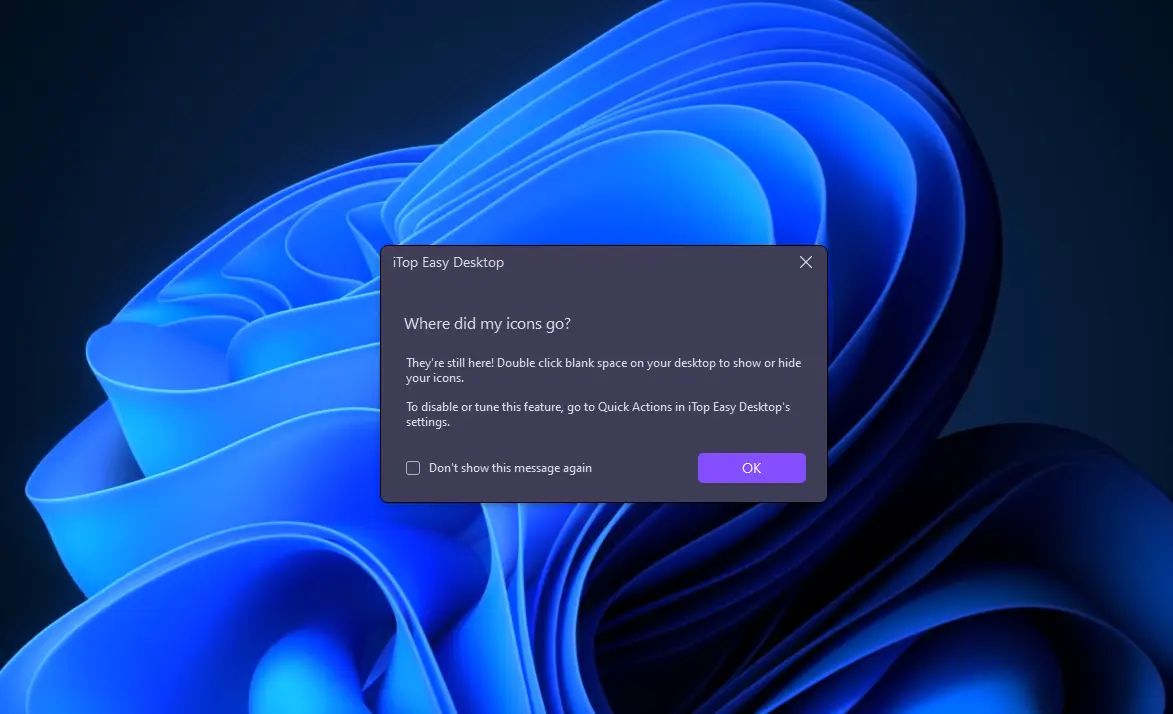
Then there were other occasions where I did not feel like seeing my desktop.
When I was working on some task or displaying my computer screen, even an organized desktop became a distraction. When I am concentrating on something, I do not need to see the files and shortcuts.
Double-Click Hide helped me resolve this problem. All I had to do was double-click, and my desktop items were gone, leaving me with a perfectly blank screen—no need for me to delete anything or transfer my files temporarily to some other location.
And when I needed my work area back, it would reappear. What I liked about this software was that it gave me two choices – have my organized work area ready whenever I need it, or just get rid of everything on my screen.
I Saved My Setup With Snapshot
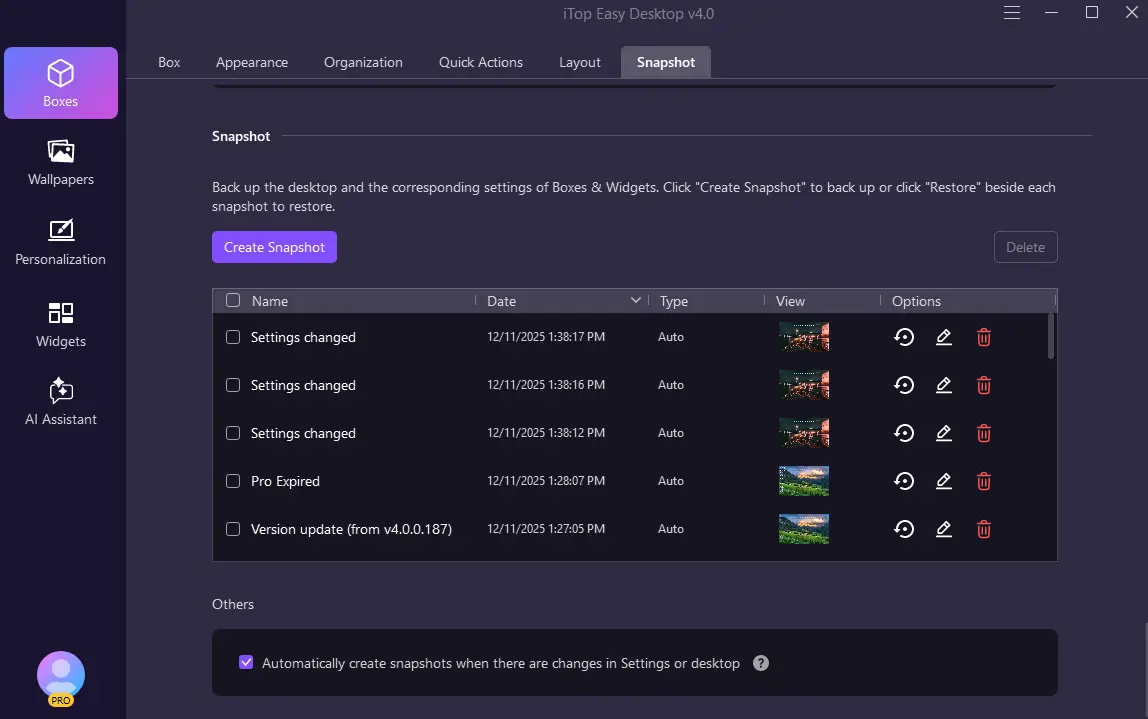
With so much time spent designing my own desktop, I decided I needed to be able to save it.
This is where Snapshot came in.
I would be able to save my desktop rather than have to start all over again if something were to happen to my layout. If anything goes wrong with my layout, I can retrieve the one I already made.
This helped me feel confident in designing my own layout since I didn’t have to start from scratch in case anything messed up.
For me, this made the whole process complete. Not only did I clean my desktop, but I designed a workspace that I could organize, keep, hide, and even save.
My Desktop Finally Became Part of My Workflow
In retrospect, discipline with organizing was not really what I needed. What I needed was a tool that made it easier to organize. First, there were Boxes, since everything was one mess. Box Rules made sure all new files were in order. Widgets and AI tools brought smart, interactive utility directly to my screen. Layout let me rearrange all things around my daily activities. Quick Actions removed repetitive actions. Double-Click Hide gave me a distraction-free screen, and Snapshot preserved the arrangement. Such an approach made iTop Easy Desktop useful for me. My computer desktop is no longer a place where files come to vanish. My computer desktop is now a true workplace where I can access all that I need, keep my frequently used things close at hand, leverage smart AI assistants, and clean up the screen whenever necessary. For anyone dealing with the same digital mess I was, desktop organizer software can make a bigger difference than simply deleting old icons. In my case, iTop Easy Desktop turned a desktop I avoided looking at into one I actually enjoy using.
FAQs
1. What is iTop Easy Desktop?
iTop Easy Desktop is a desktop organization and customization tool that helps users arrange files, folders, and shortcuts, personalize their workspace, and manage desktop clutter.
2. How does iTop Easy Desktop help organize desktop files?
Its Boxes feature lets users group desktop icons into separate areas based on categories such as work files, applications, and frequently used folders, making items easier to locate.
3. What are Box Rules in iTop Easy Desktop?
Box Rules help automate file organization by directing files into appropriate boxes according to configured rules, reducing the need to arrange every new file manually.
4. Can iTop Easy Desktop hide desktop icons?
Yes. The article describes a Double-Click Hide feature that lets users hide desktop items with a double-click and restore them when needed.
5. Does iTop Easy Desktop support desktop customization?
Yes. The article highlights features such as dynamic wallpapers, widgets, layout customization, and PawPal, a virtual desktop pet that adds an interactive element to the workspace.
6. What is the Snapshot feature in iTop Easy Desktop?
Snapshot lets users save their desktop layout so they can restore a previously saved arrangement if their setup changes or becomes disrupted.
7. Can iTop Easy Desktop improve productivity?
It can help reduce desktop clutter, make frequently used files easier to access, and minimize repetitive organization tasks. The actual productivity benefits depend on how users configure and use its features.
8. Who should use desktop organizer software?
Desktop organizer software can benefit students, professionals, remote workers, content creators, and anyone who frequently works with multiple files, folders, and application shortcuts.

Sandeep Kumar is the Founder & CEO of Aitude, a leading AI tools, research, and tutorial platform dedicated to empowering learners, researchers, and innovators. Under his leadership, Aitude has become a go-to resource for those seeking the latest in artificial intelligence, machine learning, computer vision, and development strategies.