


Your SQL Server database may run the need to initiate the recovery process in several instances. These may include database corruption, inconsistency, or a sudden system shutdown. However, the SQL Server may not let the recovery process to start, sending the database to the Recovery Pending mode. This will potentially affect database transactions and the associated business operations. Therefore, resolving the problem early becomes crucial. Let’s discuss this topic in detail and find out ways to fix Recovery Pending state.
- Recovery Pending state: In a nutshell
- Check the database state
- Fix the Recovery Pending state in the SQL Server Database
- Doing a backup restore to fix the Recovery Pending state
- Limitations of using backup for database restore
- Use DBCC CHECKDB to fix the Recovery Pending state
- 1. Set the database to EMERGENCY mode
- 2. Set the database to SINGLE_USER mode
- 3. Use REPAIR_ALLOW_DATA_LOSS
- 4. Set the database back to Multi_User mode
- Limitations of DBCC CHECKDB
- SQL recovery tool for resolving the Recovery Pending state
- Conclusion
Recovery Pending state: In a nutshell
The SQL Server engine triggers a Recovery Pending state when the database needs to run the standard recovery process during system restart or startup, but cannot do it. The error prevents the database engine from starting the recovery. The reasons may include damaged database files, storage issues, transaction log issues, improper restoration commands, and so on.
While a quick recovery method can remedy the situation, avoiding the conditions that cause this error is a better approach. Some points are worth considering in this regard:
- Ensure proper disk and storage management
- Create regular SQL backups
- Exclude MDF, LDF, and NDF files while configuring security and antivirus tools
- Maintain power and infrastructure stability
Nevertheless, the Recovery Pending state may still affect your database in case of internal log constraints, virtualization behaviors, or a failed infrastructure. The state may also surface in case of virtualization or infrastructure changes. In such events, prompt recovery becomes inevitable.
Check the database state
Before fixing the Recovery Pending issue, you should check the database state by using the T-SQL query shown below.
SELECT name, state_desc from sys.databases
Once you confirm the database state, it becomes more convenient to apply the appropriate method to fix the issue of Recovery Pending state.
Fix the Recovery Pending state in the SQL Server Database
The resolution is possible by two common methods:
- Restore the database from a healthy backup of the database taken recently
- Run the DBCC CHECKDB command with an appropriate repair option
Doing a backup restore to fix the Recovery Pending state
You may use SQL Server Management Studio (SSMS) to recover the database from the Recovery Pending state. The steps are as follows:
- Open SSMS and log in to your SQL Server instance
- On the left side of the screen, under Object Explorer, right-click Databases > Restore Database
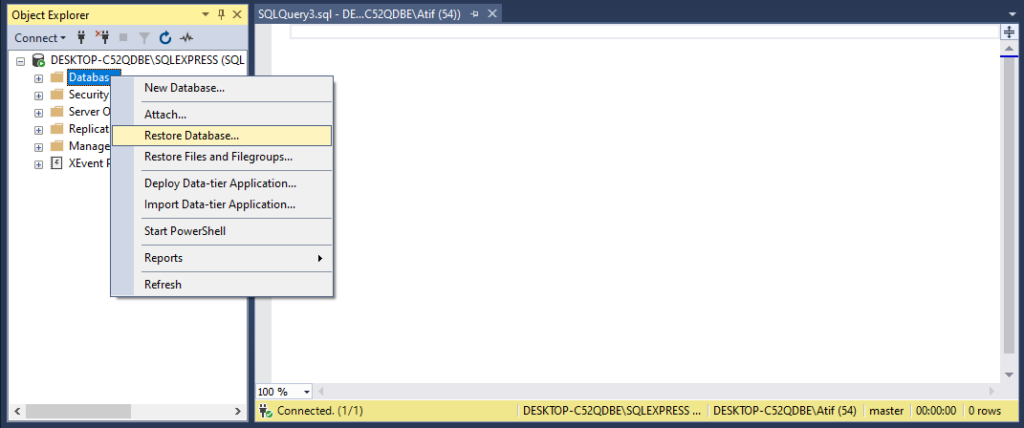
- In the Restore Database page, select General in the left pane. By default, it will remain selected when you visit the screen.
- On the right side of the Restore Database screen, click Device > … (Three Dots)
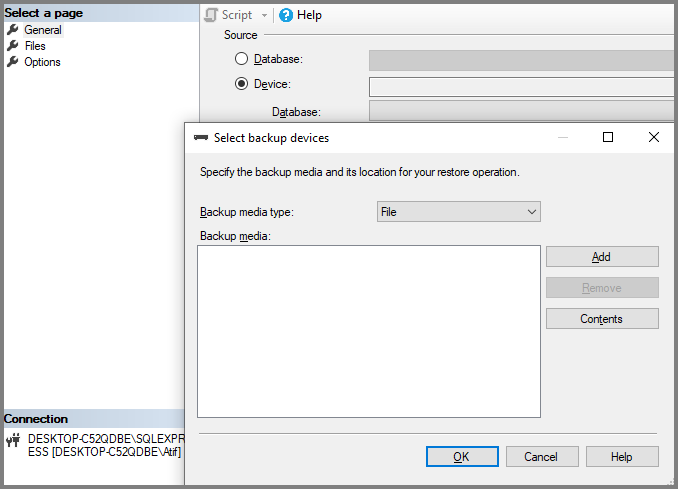
- Click Add to open the Locate Backup File window.
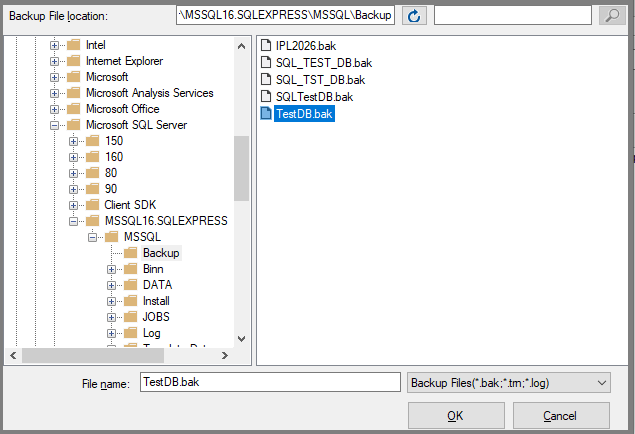
- Select the backup file through which you want to restore your database and click OK.
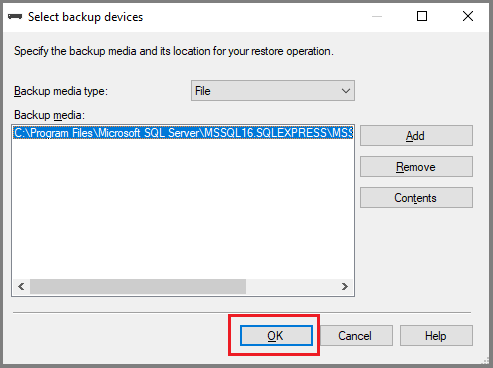
- In the Select backup devices window, click OK
- Next, in the Restore Database window, select the database name from the dropdown under the Destination section, and click OK.
- The screen below will indicate the success of your backup restore operation.
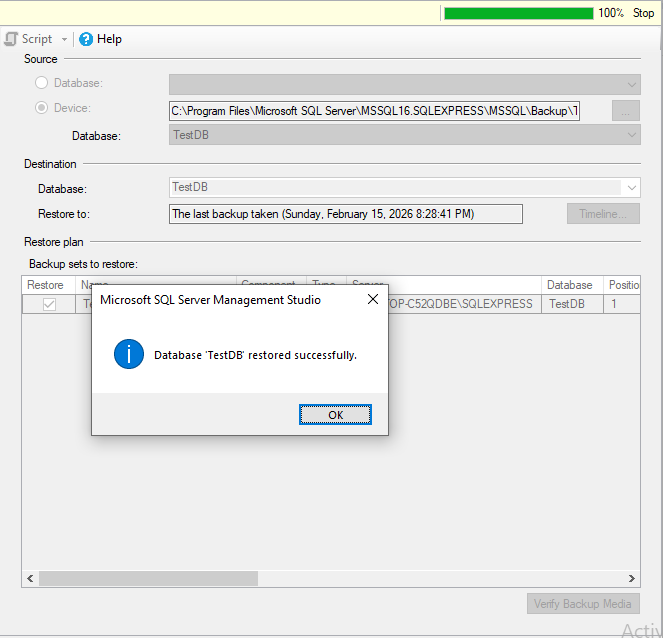
- This will bring the database online from the Recovery Pending state.
Limitations of using backup for database restore
This method can bring the database to a consistent state without any data loss. However, when restoring large databases, the process may take considerable time and storage resources. At times, you may not have the database backup either. Consider database repair as the last resort in such cases.
Use DBCC CHECKDB to fix the Recovery Pending state
This method can be quicker for larger databases, but it is riskier as the repair option used with it fixes corruption by deleting corrupt database blocks. In a large database, the exact data lost is hard to track. Here, we have used the database named TestDB, make sure to replace it with yours when starting the recovery process. The steps are as follows:
1. Set the database to EMERGENCY mode
The access to a database in the Recovery Pending state is blocked for users and commands. To make it accessible for repair, you should set the database to EMERGENCY mode. It will instruct the server to allow a restricted and read-only access to the database files instead of starting it normally.
ALTER DATABASE TestDB SET EMERGENCY
This will allow running DBCC CHECKDB and similar structural repair tools on the corrupt database.
2. Set the database to SINGLE_USER mode
This will prevent other users, processes, or apps from accessing the database while you are trying to fix the Recovery Pending state.
ALTER DATABASE TestDB SET SINGLE_USER;
3. Use REPAIR_ALLOW_DATA_LOSS
A database stuck in the Recovery Pending state is likely to have corruption in the transaction logs or deep-level data pages. Options like REPAIR_REBUILD or REPAIR-FAST options with DBCC CHECKDB are not capable of fixing this level of corruption. REPAIR_ALLOW_DATA_LOSS is a better and more capable option to resolve this issue.
DBCC CHECKDB (TestDB, REPAIR_ALLOW_DATA_LOSS) WITH ALL_ERRORMSGS;
This command will fix the file structure and force the SQL database open. In the process, it will completely delete the data contained in those corrupted blocks. x.
4. Set the database back to Multi_User mode
This will relieve the database from EMERGENCY mode and bring it back online.
ALTER DATABASE TestDB SET MULTI_USER;
Limitations of DBCC CHECKDB
After using the DBCC CHECKDB command, you can recover your database from the Recovery Pending state. While it will be operational again, you need to bear the loss of data. Therefore, make sure to perform this operation with caution. Moreover, you must have adept technical knowledge and credible experience to perform this sensitive operation. To avoid these drawbacks, admins prefer using automated tools as suitable alternatives.
SQL recovery tool for resolving the Recovery Pending state
Admins prefer using the third-party advanced SQL recovery tools to deal with the Recovery Pending and several other severe issues occurring in the SQL databases. Here are some possible advantages that you would get with these tools:
- Restore databases marked SUSPECT
- Repair the MDF file in case of a missing or corrupt backup file
- Fixes the errors that remain unresolved by manual methods
- Restore the database with complete data integrity
- Repair small as well as large MDF files
Notably, Stellar Repair for MS SQL provides all these advantages, making it a viable alternative for SQL Server administrators and users alike. The organization also provides an online SQL repair service setting you free from downloading and installing the software on your system. It serves multiple benefits:
- Repairs the MDF file up to 500 MB free
- Allows MDF file upload upto 5 GB
- No need for SQL Server environment
- Detects corruption quickly
- Allows preview of table structure
- Quick online processing
All these advantages make this SQL recovery tool suitable to set your database from the Recovery Pending state and similar issues.
Conclusion
An SQL database showing a Recovery Pending state, indicates that the database is unable to start the recovery process. This may happen because inaccessible files, storage issues, or an abrupt system shutdown. To fix this error, you may choose to restore the database from a backup. Alternatively, using DBCC CHECKDB with the REPAIR_ALLOW_DATA_LOSS repair option is another widely used manual method. These methods have certain limitations, such as increased downtime, loss of data, and the need for intense technical expertise. Various SQL recovery tools, such as Stellar Repair for MS SQL, can avoid these hassles through a quick and easy recovery process. You may also benefit from its online SQL repair service.

I’m Erika Balla, a Hungarian from Romania with a passion for both graphic design and content writing. After completing my studies in graphic design, I discovered my second passion in content writing, particularly in crafting well-researched, technical articles. I find joy in dedicating hours to reading magazines and collecting materials that fuel the creation of my articles. What sets me apart is my love for precision and aesthetics. I strive to deliver high-quality content that not only educates but also engages readers with its visual appeal.