


For years, my PC maintenance routine was a pile of half-finished habits. I would clear temp files by hand one month, forget about startup items the next, and only think about updates when a browser nagged me. When my Windows laptop started feeling sluggish this autumn, I decided to stop juggling five different tools and try Advanced SystemCare 20 as a single place to handle everything. I used the free edition for this test, and here is what I actually saw.
- Why My Old Routine Fell Apart
- My First Scan in AI Mode
- When I Wanted More Control: Manual Mode
- Finding the Space Hogs with Custom Clean
- Speed Up and Protect: The Parts I Check Weekly
- Keeping Software Current
- FAQs
- 1. What is Advanced SystemCare 20?
- 2. Is Advanced SystemCare 20 free?
- 3. What is AI Mode in Advanced SystemCare 20?
- 4. Can Advanced SystemCare 20 improve PC performance?
- 5. Is it safe to delete duplicate files using Advanced SystemCare 20?
- 6. Does Advanced SystemCare 20 replace antivirus software?
- 7. What is the difference between AI Mode and Manual Mode?
Why My Old Routine Fell Apart
The problem was never a lack of tools. It was a lack of order. I did not know which task came first, which settings were safe to touch, or how often any of it mattered.
What I wanted was simple: one dashboard, clear categories, and a way to see what changed. The left sidebar in Advanced SystemCare 20 gave me exactly that, with six sections called Care, Custom Clean, Speed Up, Protect, Software Updater and Action Center.
My First Scan in AI Mode
I started with AI Mode, which is the default. Hovering over the small question mark explains that it chooses what to scan based on the state of your PC, so you do not have to decide which items matter.
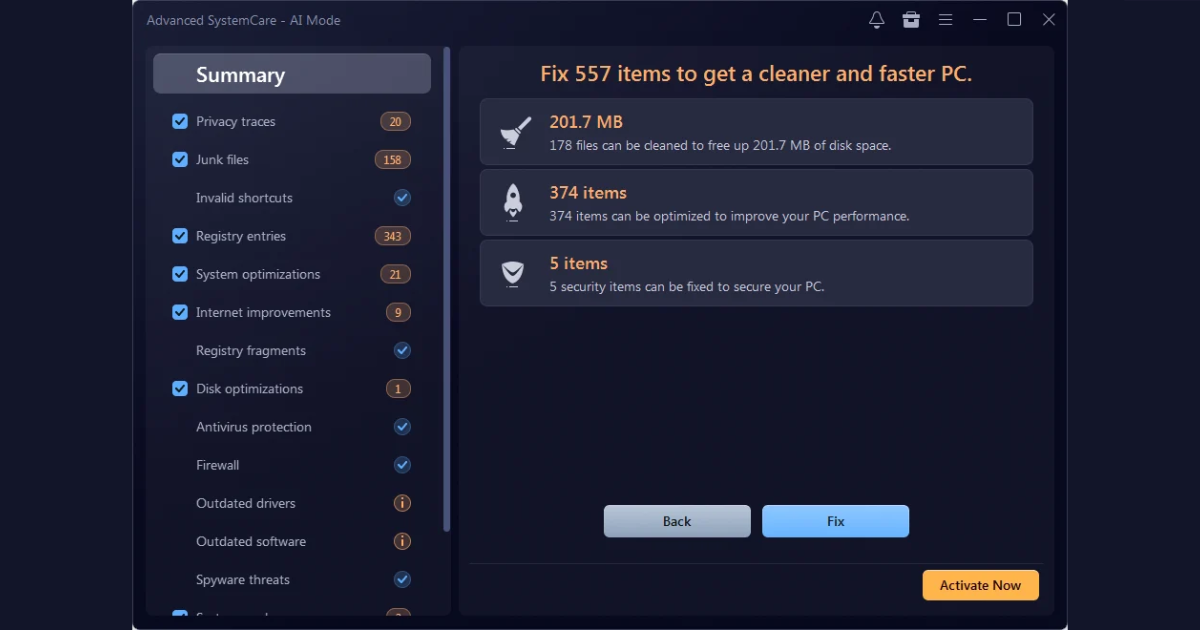
I clicked SCAN and watched the progress ring. The left panel listed 16 checks, including privacy traces, junk files, registry entries, antivirus status, firewall and outdated drivers, and ticked them off one by one.
The summary was clear. The tool found 557 items to fix: 178 files totaling 201.7 MB of junk, 374 items that could be optimized, and 5 security items. I pressed Fix, and the final screen reported 201.3 MB cleaned, 374 items optimized and 5 items fixed.
The summary breaks results into cleaning, optimization and security.
Fixing runs through the same checklist, so you can follow every step.
The completed run confirms what was cleaned, optimized and fixed.
When I Wanted More Control: Manual Mode
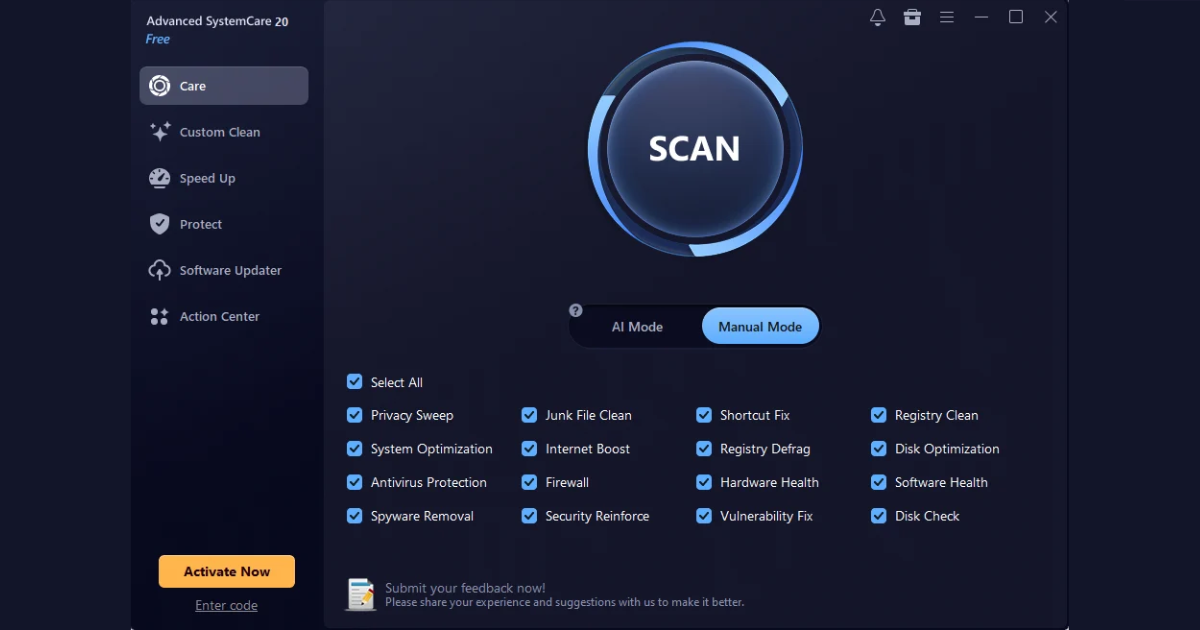
After the AI run, I switched to Manual Mode to see the full menu. It shows 16 checkboxes, including Privacy Sweep, Junk File Clean, Registry Clean, Disk Optimization, Firewall and Vulnerability Fix. Everything is ticked by default, and you can clear any box you want to skip.
Manual Mode lets you choose exactly which checks to run.
The scanning, summary and fixing screens look the same as in AI Mode, so there is nothing new to learn. I now use AI Mode for quick monthly passes and Manual Mode when I want to leave out something specific, such as registry changes.
Finding the Space Hogs with Custom Clean
Custom Clean is where this tool earned its place as my everyday Windows cleaner. It offers three targeted scans: Junk Files, Duplicate Files and Large Files, and you can pick which drive to scan.
Custom Clean lets you choose scan types and the target drive. A progress bar shows how far the scan has come.
My results surprised me. The scan found 37,369 files, about 22.1 GB in total. That included 36,959 duplicate files (2.5 GB) and 410 large files (19.6 GB). Both categories are marked “Review before cleaning,” which is the right call, because deleting duplicates or big files blindly can remove things you need.
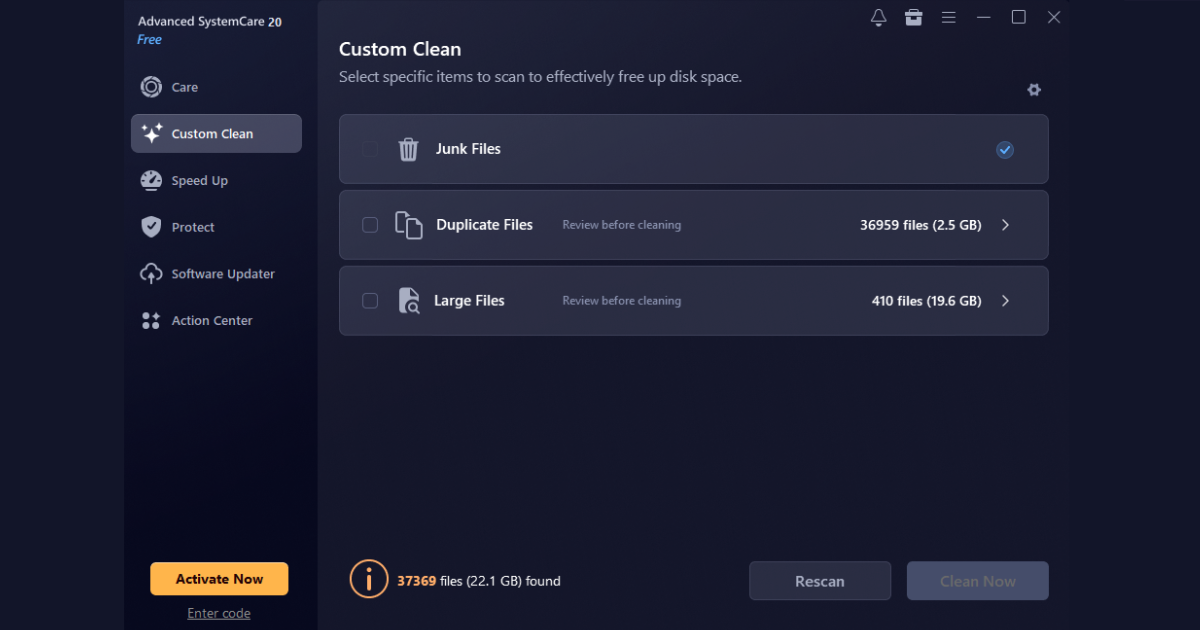
Duplicate and large files are listed for review instead of being removed automatically.
I opened the duplicate list and noticed many entries were tiny Chrome cache files of about 24 bytes. I cleaned only a small batch of items I recognized, and the app reported 12 files (72 KB) cleaned. My advice from this experience: always review the list and never press Select All on duplicates without reading the paths.
Each duplicate shows its path, last access time and size so you can decide.
Speed Up and Protect: The Parts I Check Weekly
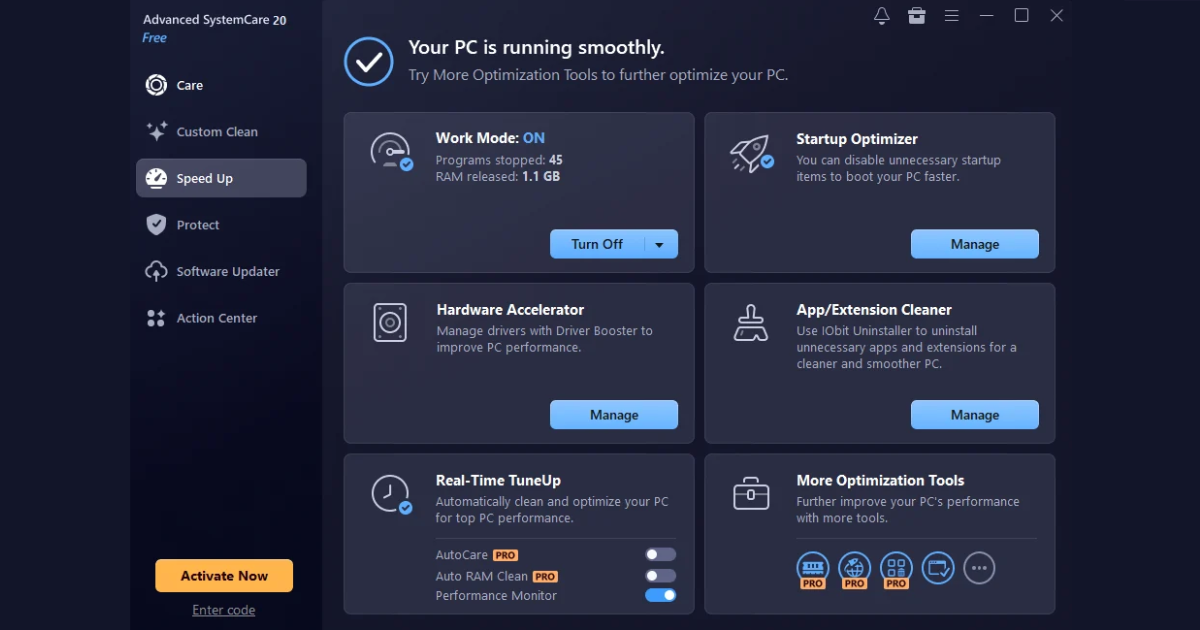
The Speed Up tab gave me a quick view of Work Mode, which on my PC stopped 45 programs and released 1.1 GB of RAM. It also links to the Startup Optimizer for disabling items that slow boot time. Some features, such as AutoCare and Auto RAM Clean, are labeled Pro, so I could see what the free edition leaves out.
Speed Up gathers Work Mode, startup control and real-time tuning.
The Protect tab was honest with me. It confirmed Windows Defender and Windows Firewall were on, but warned that my PC was not fully protected because Browser Protection options like Surfing Protection were off. That kind of plain feedback is what I want from a PC cleaner that also touches security.
Keeping Software Current
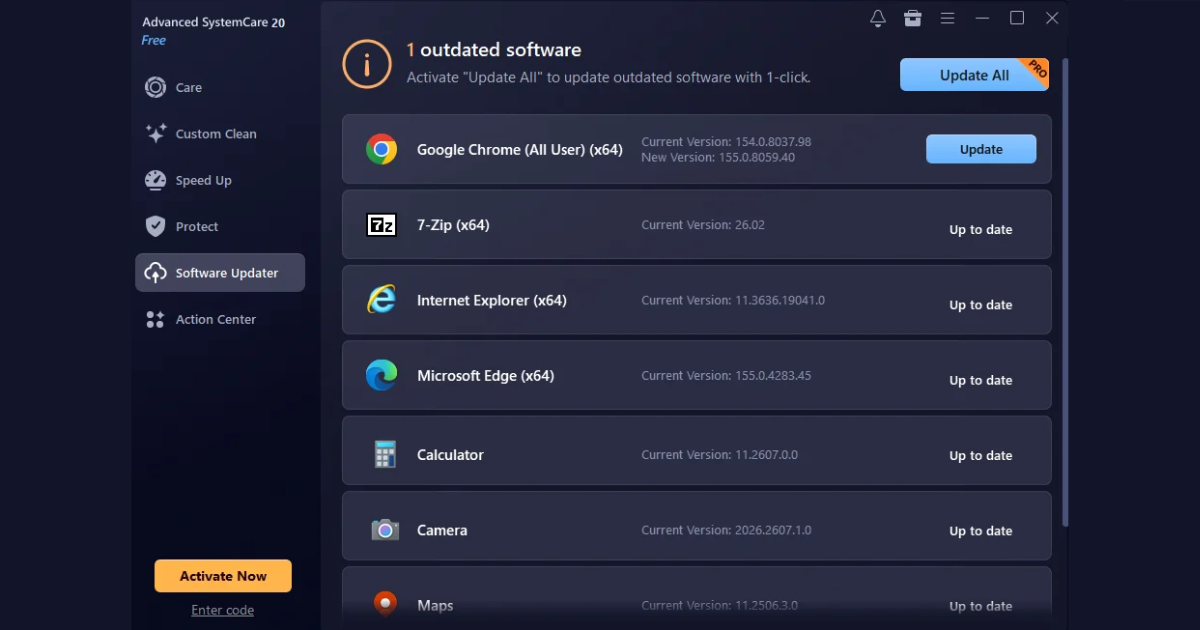
The Software Updater tab scanned my installed apps and flagged one outdated program: Google Chrome, version 154 with version 155 available. Everything else, including 7-Zip and Microsoft Edge, showed as up to date. Updating individual apps is available for free, while the one-click Update All button is a Pro feature.
Final Thoughts
Advanced SystemCare 20 turned my scattered maintenance into a repeatable routine: scan, review, fix, then check Speed Up, Protect and updates. I went from feeling overwhelmed to knowing exactly what to do each month. If you want a simple starting point, you can download Advanced SystemCare and try the free edition yourself.
FAQs
1. What is Advanced SystemCare 20?
Advanced SystemCare 20 is a Windows PC maintenance and optimization tool developed by IObit. It offers junk file cleanup, system optimization, startup management, security checks, and software updates.
2. Is Advanced SystemCare 20 free?
Yes. Advanced SystemCare 20 offers a free edition with features such as system scanning, junk file cleanup, and individual software updates. Advanced features, including AutoCare, Auto RAM Clean, and one-click Update All, require the Pro edition.
3. What is AI Mode in Advanced SystemCare 20?
AI Mode automatically selects system checks based on the PC’s condition. It helps users identify junk files, optimization opportunities, and potential security issues without manually selecting every scan option.
4. Can Advanced SystemCare 20 improve PC performance?
It may help improve system responsiveness by removing unnecessary files, managing startup programs, and reducing background activity. Actual performance improvements depend on the computer’s condition and configuration.
5. Is it safe to delete duplicate files using Advanced SystemCare 20?
Duplicate files should always be reviewed before deletion. Some duplicates may be necessary for applications or backups. Check file paths and contents before removing anything.
6. Does Advanced SystemCare 20 replace antivirus software?
No. Advanced SystemCare includes security-related checks, but it should not be treated as a replacement for dedicated antivirus protection such as Microsoft Defender.
7. What is the difference between AI Mode and Manual Mode?
AI Mode automatically chooses system checks, while Manual Mode lets users select or deselect individual checks, including junk file cleaning, registry cleaning, and disk optimization.

Sandeep Kumar is the Founder & CEO of Aitude, a leading AI tools, research, and tutorial platform dedicated to empowering learners, researchers, and innovators. Under his leadership, Aitude has become a go-to resource for those seeking the latest in artificial intelligence, machine learning, computer vision, and development strategies.