

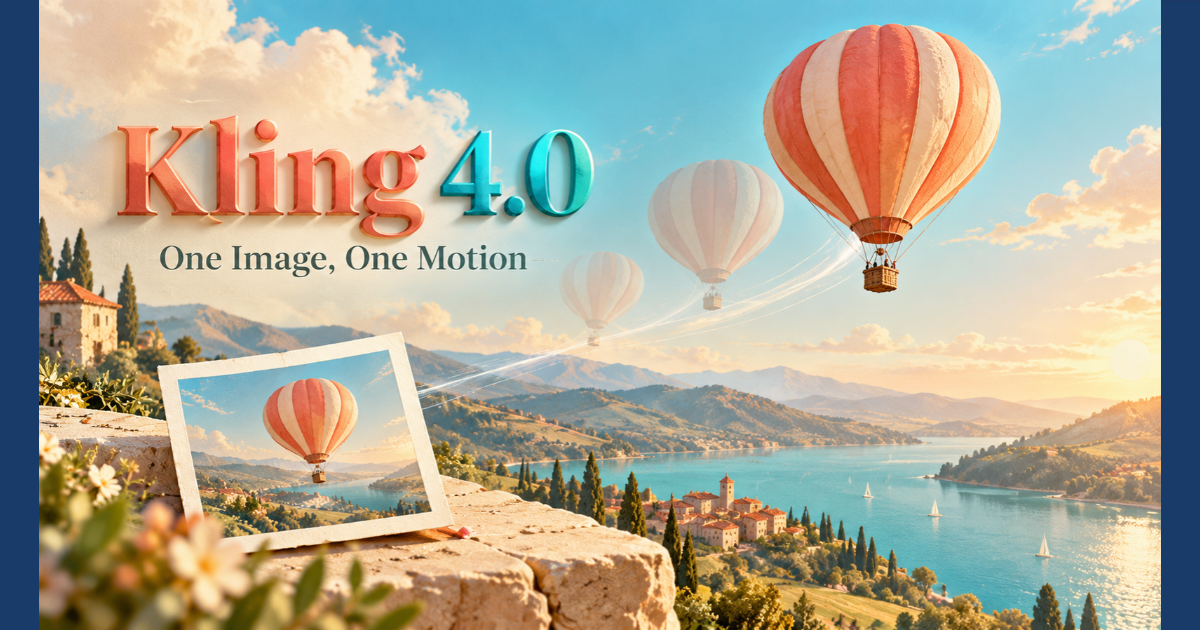
An illustrator has finished a picture of a coral hot-air balloon above a quiet valley. It works well as a still image, but a short video could make it more inviting on a website or social post. The illustrator does not need a new scene. A gentle upward drift, with the landscape staying familiar, would do the job.
- Let the image do some of the describing
- Watch what actually happened
- FAQs
- 1. What is Kling 4.0 Image to Video?
- 2. How do you turn an image into a video using Kling 4.0?
- 3. Can Kling 4.0 animate illustrations and artwork?
- 4. What prompts work best for Kling 4.0 Image to Video?
- 5. How can I maintain image consistency when generating AI videos?
- 6. Can Kling 4.0 generate videos for social media?
- 7. Does Kling 4.0 preserve every detail of the original image?
Kling 4.0 can start from a still image as well as a text idea. On kling-4.art, you can add a suitable picture, describe how the scene should move, choose the available settings and generate a short clip. For a first project, it helps to keep the aim this small: make the picture move without losing what made it worth using.
Let the image do some of the describing
A written prompt has to describe the balloon, its colour, the valley and the light. An image already shows those things. When the picture is the starting point, the prompt can spend more of its words on action. That is the basic appeal of image to video: you begin with a visual decision you have already made.
Choose an image whose main subject is easy to spot. In the balloon picture, the balloon should not be a tiny shape lost among buildings and clouds. Leave enough space around it for the movement you want. If the balloon is pressed against the top edge, asking it to rise may be less useful than choosing a version with more sky.
You do not have to make a perfect illustration before trying the idea. A clean, simple image can be enough to learn whether the motion works. If the source has important small details, however, plan to check those details in the generated video. An input image gives the model a visual starting point; it does not guarantee that every line and texture will remain unchanged.
Ask for one action
The simplest instruction for this example is also the easiest to judge: the balloon drifts slowly upward. You might let a few clouds move behind it, but you do not need a sudden camera spin, a change of season and a new location in the same clip. Those additions create more chances for the video to wander away from the original artwork.
A first prompt could be:
The coral hot-air balloon rises gently above the valley. Keep its shape and colour close to the source image. Let the clouds move slowly, with no cuts and no new objects.
This is an instruction to try, not a report of a test result. It names the main subject, gives one clear motion and says what should remain familiar. If the first video moves too quickly, the next prompt can ask for a slower rise. If the balloon changes appearance, simplify the background action and compare the result with the original image.
Different pictures call for different motion. A drawing of a tree might need only a light breeze in the leaves. A still product illustration might work better with a small camera move while the object stays still. The useful question is not “What can I make move?” but “Which movement helps someone understand or enjoy this picture?”
Make a clip that fits its destination
Before generating several versions, decide where the video will appear. A wide website banner leaves room for the valley. A vertical social post may crop the sides and put more attention on the balloon. The available aspect-ratio options in the generator can help you choose the shape, but you should still check the final crop on the actual page or phone screen.
A short clip is a sensible first attempt. The balloon only needs enough time to begin moving and let viewers notice the change. A longer duration is not automatically more engaging; if the scene has no second idea, extra seconds may make it feel slow. Check the duration and credit estimate shown in the workspace before submitting a generation.
Keep any exact words outside the generated picture. If the post needs an event date, a call to action or a product name, add those in an editor after the video is ready. Text placed over the finished clip is easier to read, revise and check than lettering the model might invent within the scene.
Watch what actually happened
Kling 4.0 AI Video Generator gives you a video to judge, not a promise that the first version will match every detail of your picture. Play the whole clip at normal speed. Does the balloon rise in a calm way? Does it keep a recognisable shape? Do the valley and sky still feel like the same illustration? A striking first frame is not enough if the subject changes halfway through.
Look at the edges as well as the centre. A balloon that drifts partly out of frame may not work as a website header. Clouds that suddenly become new objects can pull attention from the subject. If the movement is good but the crop is awkward, you may need a different source composition rather than a longer prompt.
One change at a time makes the next attempt more informative. Slow the balloon, reduce background movement or change the frame shape, then see what improved. Rewriting everything after each result makes it hard to tell which choice mattered. There is no need to work through advanced controls before a simple image and clear motion have proved useful.
Use the result for one clear purpose
The finished clip could open a short post about the illustration, sit behind a title on a portfolio page or introduce an event announcement. It does not have to replace the original artwork. Some readers may still prefer the still image, especially where they need time to examine detail. The video offers another way to present the same idea.
For a first Kling 4.0 project, that is enough. Start with a picture you are allowed to use, name one movement, and compare the clip with the source. If the balloon looks right and the motion adds something, the illustrator has a useful short video. If it does not, the small scope makes the next decision clear.
FAQs
1. What is Kling 4.0 Image to Video?
Kling 4.0 Image to Video is described as an AI-powered image animation tool that turns still pictures into short video clips using text-based motion instructions.
2. How do you turn an image into a video using Kling 4.0?
Upload a suitable image, describe the movement you want, select the available video settings, and generate a clip. Review the result and adjust the prompt if necessary.
3. Can Kling 4.0 animate illustrations and artwork?
The workflow described in the article can be applied to illustrations and artwork, including landscapes, characters, and product images. Results may vary depending on the source image and motion instructions.
4. What prompts work best for Kling 4.0 Image to Video?
Start with a simple prompt describing one main action. For example:
A coral hot-air balloon rises slowly above a peaceful valley. Keep its original shape and color, with gentle cloud movement and no new objects.
5. How can I maintain image consistency when generating AI videos?
Use a clear source image, keep motion instructions simple, avoid unnecessary scene changes, and compare the generated video with the original image.
6. Can Kling 4.0 generate videos for social media?
The article describes using generated clips for social posts, website banners, portfolios, and event announcements. Choose an appropriate aspect ratio and check the final crop before publishing.
7. Does Kling 4.0 preserve every detail of the original image?
Not necessarily. AI-generated video may change small details, shapes, or textures during animation. Review the entire clip before using it in a project.

Sandeep Kumar is the Founder & CEO of Aitude, a leading AI tools, research, and tutorial platform dedicated to empowering learners, researchers, and innovators. Under his leadership, Aitude has become a go-to resource for those seeking the latest in artificial intelligence, machine learning, computer vision, and development strategies.