

Many AI image experiments fail for a simple reason: the prompt changes too many things at once. A creator rewrites the subject, lighting, camera, style, and background, generates another image, and then has no idea which change helped. The result may look better, but the process is not repeatable.
- Define the hypothesis before opening the tool
- Step 1: Select a different community model
- Step 2: Lock the technical settings
- Step 3: Write a prompt that exposes its variables
- Step 4: Review the result as data, not decoration
- Step 5: Build a lightweight prompt log
- Step 6: Prepare a motion specification without generating video
- Three practical uses for the workflow
- Final takeaway
For this tutorial, I used APOB AI to build a small prompt test around a fictional creator at an AI workstation. The objective was not to chase a perfect picture. It was to produce a stable source frame that could later support an image-to-video workflow without wasting credits on a weak input.
The test used one community model, one output, a fixed 16:9 ratio, and a prompt written as a set of controllable variables. I generated the still image only. I did not render video, because motion is more efficient after the character, composition, and scene have passed a visual quality gate.
Define the hypothesis before opening the tool
A useful prompt test starts with a statement that can be checked. Mine was:
If the prompt fixes the character, workspace, lighting, camera style, and negative-space requirement, the output should be usable as a technical tutorial cover and as a future image-to-video source frame.
This hypothesis turns subjective taste into a practical review. I could inspect whether the result looked like a believable workspace, whether the character remained the visual anchor, and whether the frame had room for a headline.
I also separated the prompt into constants and variables.
Constants
- Community portrait model
- Modern desk and dual monitors
- Blue and cyan technology lighting
- Realistic editorial photography
- 16:9 composition
- No logo, readable text, or watermark
Variables for later tests
- Camera distance
- Headline space on the left or right
- Screen content
- Wardrobe color
- Degree of background blur
- Facial expression
When only one variable changes between runs, it becomes possible to learn from the result instead of merely collecting alternatives.
Step 1: Select a different community model
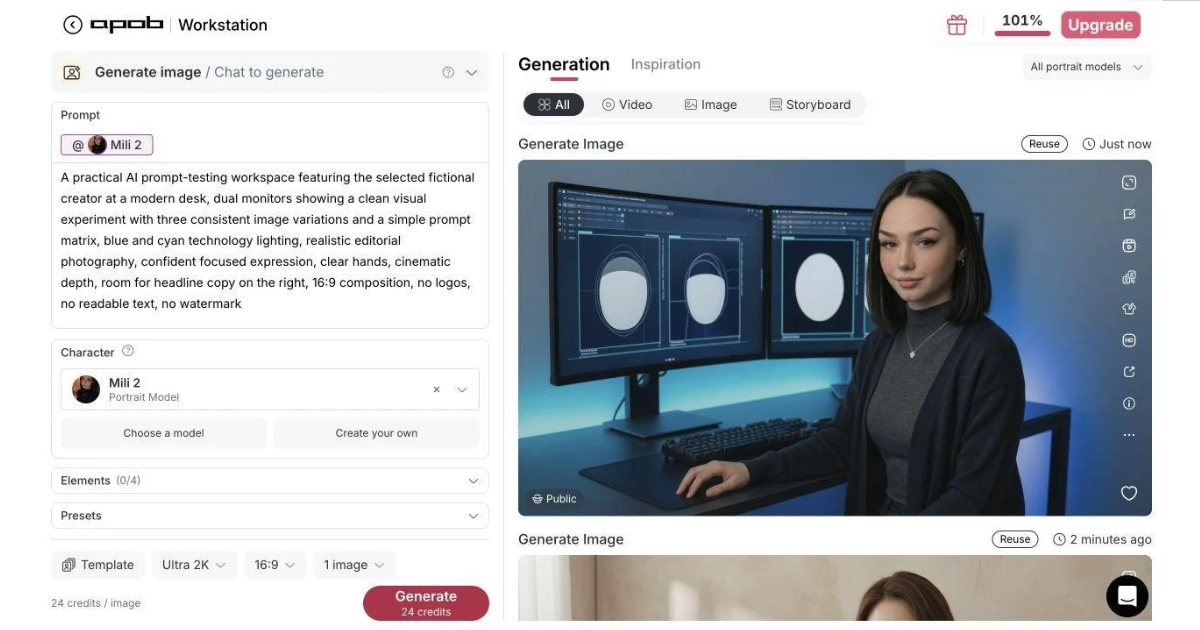
I selected “Mili 2” for this experiment. Using a portrait model gives the prompt a stable subject and makes the test more relevant to creator workflows, explainers, AI presenters, and tutorial thumbnails.
The character was fictional in this context. That matters: do not imply that a real person endorses a tool or product without permission. If a project uses an employee, client, influencer, or customer likeness, consent and usage rights should be part of the production checklist.
Step 2: Lock the technical settings
The settings were:
- Mode: Generate image
- Portrait model: Mili 2
- Quality: Ultra 2K
- Aspect ratio: 16:9
- Output count: 1 image
One-image tests are underrated. They make each run a deliberate experiment, reduce review fatigue, and prevent teams from choosing a result simply because it is the least flawed in a large batch. If the direction fails, fix the prompt before scaling.
Step 3: Write a prompt that exposes its variables
Exact prompt used:
A practical AI prompt-testing workspace featuring the selected fictional creator at a modern desk, dual monitors showing a clean visual experiment with three consistent image variations and a simple prompt matrix, blue and cyan technology lighting, realistic editorial photography, confident focused expression, clear hands, cinematic depth, room for headline copy on the right, 16:9 composition, no logos, no readable text, no watermark.
The prompt is long enough to define the experiment but short enough to debug. Each phrase has a job:
- “practical AI prompt-testing workspace” establishes the tutorial context.
- “selected fictional creator” links the scene to the chosen portrait model.
- “dual monitors” adds technical credibility and provides structured background detail.
- “three consistent image variations” asks for visual comparison without relying on readable interface text.
- “blue and cyan technology lighting” creates a repeatable palette.
- “clear hands” flags an anatomy-sensitive region for review.
- “room for headline copy on the right” gives the image a publishing purpose.
- The final negative constraints reduce unwanted branding and broken text.
With an AI image generator, I prefer to write prompts in this order: subject, action, environment, visual style, composition, and exclusions. That order makes revisions easier because I can change one block without rewriting the entire idea.
Step 4: Review the result as data, not decoration
The output produced a coherent technical workspace, two screens, a clear portrait, and controlled blue lighting. It also revealed a useful limitation: the screen contents looked like interface diagrams rather than a literal, readable prompt matrix. That is acceptable for an editorial cover, because readable UI text was not required. It would not be acceptable for a step-by-step screenshot of actual software.
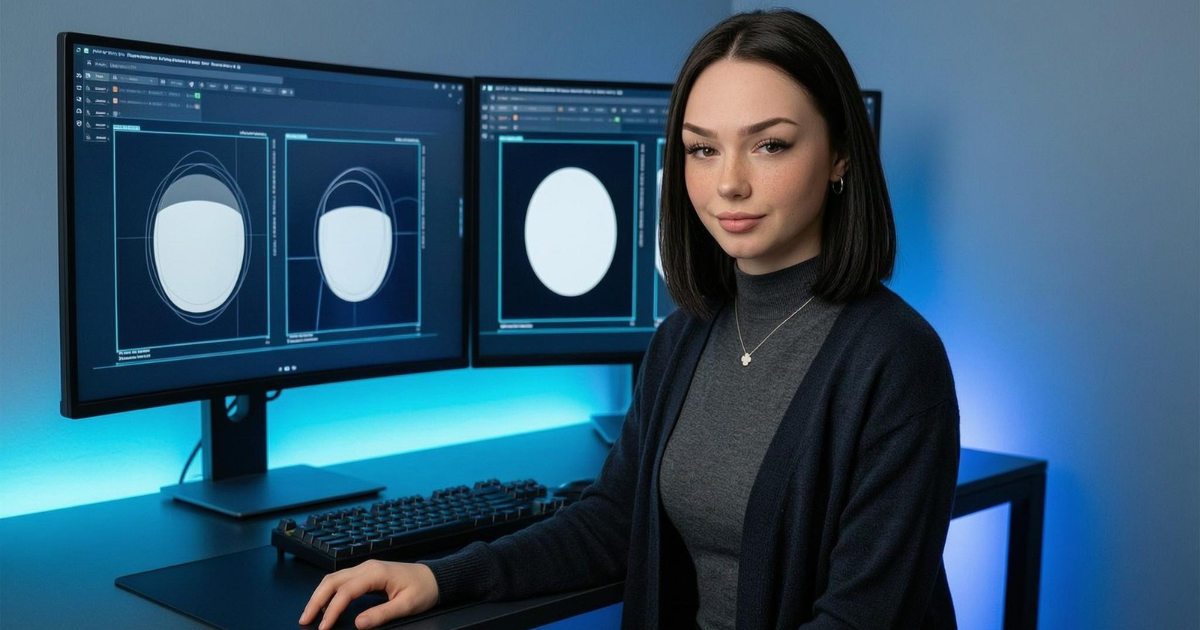
I scored the image against six checks:
- Character consistency: does the subject look like the selected portrait model?
- Composition: is the subject clearly separated from the monitors and desk?
- Anatomy: are face, eyes, shoulders, and visible hands plausible?
- Environment logic: do the screens, keyboard, desk, and lighting belong to the same scene?
- Publishing space: can a designer add a title without covering the face?
- Motion readiness: are there stable objects that can remain fixed during animation?
The image passed the editorial-cover requirement. If I wanted a more literal experiment board, the next prompt would change only the screen instruction:
Replace the abstract monitor graphics with three unlabeled portrait thumbnails arranged in a clean three-column comparison; keep the character, camera, lighting, wardrobe, desk, and composition unchanged.
That single-variable revision would tell me whether the screen layout can become clearer without disturbing the rest of the frame.
Step 5: Build a lightweight prompt log
A simple prompt log makes the workflow reproducible. It can live in a spreadsheet, project board, or text file. For each run, record:
- Model name
- Prompt version
- Quality and aspect ratio
- Variable changed
- Result link or file name
- Pass/fail reason
- Next revision
Example:
- Version: V1
- Variable: baseline
- Result: strong subject and lighting; screen graphics too abstract
- Decision: pass for article cover, revise for literal tutorial visual
- Next change: replace screen instruction only
This is especially useful for teams. A reviewer can explain why a frame was rejected without vague feedback such as “make it more futuristic.” It also makes successful prompt patterns reusable across clients.
Step 6: Prepare a motion specification without generating video
The still image is now ready for an image-to-video preflight. I did not render a clip for this test. Instead, I wrote the motion specification that I would use after editorial approval.
Suggested motion prompt:
Slow camera push-in toward the creator, subtle breathing and natural blink, right hand moves gently toward the keyboard, monitor glow remains stable, screen layout does not change, no new objects, no text generation, no face distortion, realistic professional movement.
The prompt deliberately limits motion. A technical tutorial cover does not need dramatic camera movement or a changing background. Small, predictable actions preserve identity and reduce the chance of screen, hand, or facial artifacts.
Before using an image-to-video AI, I would confirm four things:
- The still image is the final approved crop.
- The face and hands are clean enough to animate.
- The background contains no accidental brand marks or confidential information.
- The motion prompt identifies what must move and what must remain fixed.
If any of those checks fail, returning to the image stage is cheaper than trying to repair a moving artifact later.
Three practical uses for the workflow
Tutorial publishing. Create consistent covers for a series of AI, coding, or data articles. Keep the same character and lighting, then change only the tool category or screen concept.
Freelance content packages. Offer clients a repeatable bundle: article cover, social crop, thumbnail, motion-ready source frame, and documented prompt. The prompt log becomes part of the deliverable and reduces revision debates.
Internal product education. Build a fictional presenter for onboarding or feature explainers, then maintain a controlled visual system across release notes, help-center graphics, and short clips.
The commercial opportunity is not merely producing a picture. It is giving a client a traceable system that can create the next picture faster.
Final takeaway
Prompting becomes much more reliable when it is treated like a small experiment. Fix the constants, change one variable, record the result, and approve the still image before adding motion. This approach is slower than pressing “generate” ten times, but faster than reviewing ten unrelated outputs – and far more useful when the goal is a repeatable creative workflow.

Sandeep Kumar is the Founder & CEO of Aitude, a leading AI tools, research, and tutorial platform dedicated to empowering learners, researchers, and innovators. Under his leadership, Aitude has become a go-to resource for those seeking the latest in artificial intelligence, machine learning, computer vision, and development strategies.