Not everyone has a separate room for working or studying. In many UK homes, a laptop is used at the dining table, on a small desk in the bedroom or in a shared living area. The same space might be used for video meetings in the morning, everyday household activities in the afternoon and entertainment in the evening.
- Why Small Spaces Need a Different Approach to Laptop Organisation
- How a Docking Station Can Simplify a Home Setup
- When a USB Hub Is the Simpler Choice
- Make the Dining Table Work as a Temporary Desk
- Use an External Monitor Only When It Adds Value
- Create a Comfortable Working Position
- Keep Cables from Taking Over the Room
- Organise Accessories in Shared Homes
- Keep Portable Accessories Ready for Work Outside the Home
This flexibility is one of the biggest advantages of using a laptop. However, it can become inconvenient when additional equipment is involved.
An external monitor, keyboard, mouse, storage drive and charging cable can quickly take over a small table. Disconnecting everything whenever the space is needed for something else can also become frustrating.
Fortunately, a practical laptop setup does not require a large desk or a dedicated office. With a little organisation and the right connections, even a compact living space can support comfortable working, studying and everyday computer use.
Why Small Spaces Need a Different Approach to Laptop Organisation
A traditional home office usually has enough room for a permanent desk, monitor and other equipment.
In smaller homes, that arrangement may not be possible.
You might share a flat with other people, work from a bedroom or use the dining table when it is not needed for meals.
In these situations, your equipment must be easy to set up, move and store.
The main challenge is balancing three priorities:
- Having the connections needed for everyday tasks
- Keeping the working area comfortable and organised
- Being able to clear the space without spending too much time disconnecting equipment
A flexible setup should make your laptop more convenient to use rather than turning every working session into a complicated installation process.
The first step is to identify which accessories genuinely improve your daily routine.
Start with the Equipment You Actually Use
It is easy to assume that a productive workstation needs several monitors and numerous accessories.
However, the most practical arrangement depends on what you do.
Someone who primarily writes emails, attends video meetings and browses documents may need relatively little additional equipment.
A person who regularly works with spreadsheets, photographs or several applications at once may benefit from more screen space and external peripherals.
Before arranging your workspace, consider which devices you use frequently.
These might include:
- A laptop
- An external monitor
- A keyboard and mouse
- Headphones or a headset
- An external storage drive
- A webcam
- Charging equipment
- Other USB accessories
Next, separate these items into essentials and occasional extras.
Equipment used every day should be easy to access. Accessories needed only occasionally can be stored nearby without occupying permanent desk space.
This helps keep the setup practical without adding unnecessary clutter.
How a Docking Station Can Simplify a Home Setup
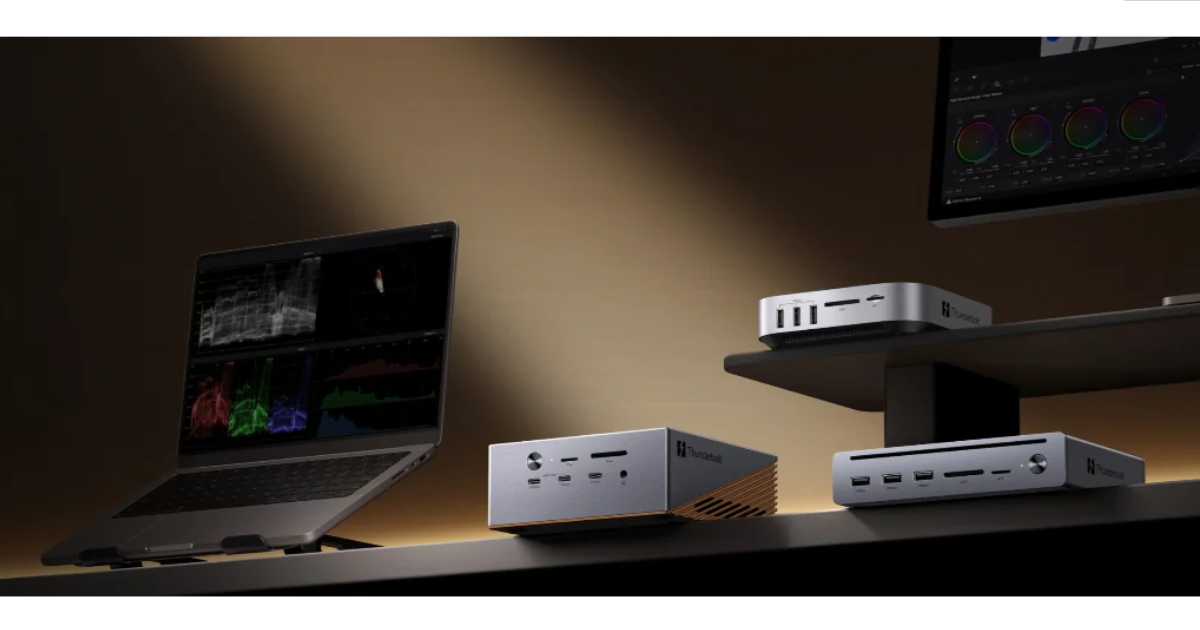
If you regularly connect several devices to your laptop, managing individual cables can become inconvenient.
You may need to connect an external display, keyboard, mouse and other compatible accessories whenever you sit down to work.
A suitable docking station can help organise supported devices around a central connectivity point.
Depending on the particular model and your laptop’s capabilities, a docking station may provide connections for external displays, USB peripherals, networking or other equipment.
This can be useful when your laptop is frequently moved away from a fixed workstation.
For example, you might use a monitor and keyboard during the day, then disconnect your laptop to make room for dinner.
Having the desktop equipment organised around a docking setup can reduce the need to handle multiple separate connections each time.
However, compatibility is essential.
Not every laptop supports the same display configurations, data-transfer capabilities or power delivery features.
Before choosing a docking station, check your laptop’s specifications and confirm that the intended devices and connections are supported.
UGREEN UK offers different connectivity options for everyday computer setups, but the right arrangement depends on the equipment you already own and the functions you need.
When a USB Hub Is the Simpler Choice
Not every laptop user needs a full desktop connectivity setup.
If your main requirement is connecting a few additional USB devices, a smaller accessory may be sufficient.
For example, you might occasionally need to connect an external drive, mouse receiver or another compatible peripheral.
A usb hub can provide additional connections for supported devices without requiring a more extensive workstation.
This can be especially useful when your laptop moves between different rooms.
A compact hub may be easier to pack away after use and convenient to carry when working outside the home.
However, USB hubs differ in their capabilities.
Some primarily provide additional USB data connections, while others may support different features. Available power and data-transfer performance can also vary.
It is therefore important to check the requirements of the devices you intend to connect.
If you mainly need access to several USB peripherals, a compatible hub may be all that is necessary.
If your setup involves more extensive connections, a docking station may be more suitable.
Make the Dining Table Work as a Temporary Desk
For people without a dedicated home office, the dining table is often the most practical working surface.
It usually provides enough room for a laptop, notebook and other essentials.
However, it must also be easy to clear after work.
A useful approach is to keep your setup modular.
Instead of spreading accessories across the entire table, place them in a defined working area.
Keep cables close to the laptop and avoid routing them through spaces where people walk.
If you use an external keyboard and mouse, position them comfortably without taking over more space than necessary.
At the end of the day, disconnect the laptop and return portable accessories to their designated storage area.
This makes it easier to restore the table to its normal use.
The aim is to create a workstation that feels comfortable during the day without permanently changing how the room functions.
Use an External Monitor Only When It Adds Value
An external monitor can be useful when working with several documents, researching information or reviewing detailed content.
However, it also occupies space.
In a small room, the decision to use an additional display should depend on how frequently it improves your work.
If you regularly compare spreadsheets or prepare presentations, more screen space may be valuable.
If you mainly use one application at a time, the laptop’s built-in display might be sufficient.
Before connecting an external monitor, check the video-output capabilities of your laptop.
The presence of a USB-C port does not automatically mean that the port supports video output.
Similarly, using a docking station does not guarantee that every laptop can support multiple independent external displays.
Display compatibility depends on the laptop, connection technology, accessory and monitor configuration.
Understanding these requirements beforehand can prevent unnecessary equipment purchases.
Create a Comfortable Working Position
Working in a small space should not mean ignoring comfort.
Using a laptop for several hours at an unsuitable height can become tiring.
Where possible, position the screen so that you can view it comfortably without repeatedly bending your neck.
If you raise the laptop, an external keyboard and mouse may help maintain a more natural working position.
Also consider:
- Having enough room to move your mouse
- Keeping frequently used items within easy reach
- Avoiding excessive screen glare
- Sitting on a supportive chair
- Leaving sufficient space around the laptop for ventilation
- Taking regular breaks from the screen
These adjustments do not require a permanent office.
Even a temporary workstation can be arranged with comfort in mind.
When the working session ends, the accessories can be put away and the room returned to its usual purpose.
Keep Cables from Taking Over the Room
Cable clutter is particularly noticeable in small spaces.
A few loose cables can make an otherwise tidy table appear crowded.
It can also become difficult to identify which cable belongs to which accessory.
A simple cable-management routine can help.
Start by removing cables that are not needed for the current setup.
Keep frequently used connections together, and store occasional accessories separately.
Suitable cable clips or organisers can help prevent loose cables from falling behind furniture.
If several cables look similar, consider labelling them.
It is also important to avoid stretching power or data cables across walkways.
Where possible, position your working area near a suitable power source without creating a tripping hazard.
A tidy arrangement makes it easier to disconnect equipment when the space needs to be cleared.
Switch Between Work and Personal Use More Easily
A laptop is often used for far more than professional tasks.
After finishing work, you might use it to watch a film, organise photographs, make a video call with family or plan a holiday.
This is another reason why a flexible setup can be useful.
During the day, you may prefer an external monitor, keyboard and other accessories.
In the evening, you might want to take the laptop to another room or use it without the additional equipment.
A practical connectivity arrangement should support both situations.
If your desktop peripherals are connected through a suitable central accessory, moving the laptop may involve fewer separate connections.
If you use only a few occasional USB devices, keeping them connected through a compatible hub may simplify packing them away.
The important thing is to avoid creating a setup that is difficult to change.
Your laptop should remain portable even when it forms part of a larger working arrangement.
Organise Accessories in Shared Homes
Sharing a home introduces additional considerations.
One person might need the dining table for work in the morning, while another needs it for studying later.
Without a clear system, cables and accessories can easily become mixed together.
Giving each person’s equipment a designated storage area can make shared spaces easier to manage.
For example, a small drawer, shelf or organiser can hold laptop chargers, USB accessories and other personal items.
It also helps to agree on which equipment is shared and which belongs to an individual.
If several people use the same monitor or other peripherals, checking compatibility with their laptops is important.
Different computers may support different connection methods.
UGREEN UK connectivity accessories can be considered when organising shared computer equipment, although compatibility should always be checked for each intended device.
A simple arrangement is usually easier for everyone to maintain than a complicated collection of adapters and cables.
Keep Portable Accessories Ready for Work Outside the Home
Even if you work mainly from home, you may occasionally take your laptop to a library, café or another location.
This is where a compact connectivity kit can be useful.
Rather than disconnecting every accessory from your home setup, prepare a small collection of items that you regularly need outside.
Depending on your equipment, this might include a compatible USB hub, charging cable and any essential adapters.
Keep these items together in a dedicated compartment.
Before leaving, check whether your destination provides suitable power and whether any external connections will be required.
Avoid packing accessories that serve no clear purpose.
A lighter, more organised laptop bag makes moving between locations easier.
Review Your Setup Before Buying More Equipment
A small workspace can quickly become crowded when new accessories are added without a clear plan.
Before buying anything, identify the specific problem you want to solve.
For example:
Not enough USB connections: A suitable USB hub may help.
Too many separate desktop connections: A compatible docking station may provide a more organised arrangement.
Limited working space: Better equipment positioning and storage may be more useful than additional hardware.
Difficulty moving the laptop: A simpler connection routine may be the best solution.
It is also worth reviewing accessories you already own.
An unused adapter or cable may be suitable for your current requirements.
However, do not assume that an older accessory supports every feature of a newer laptop.
Check connection standards, power requirements and supported functions before relying on it.
The goal is to choose equipment that solves a real problem rather than adding more complexity.
Build a Five-Minute End-of-Day Routine
One of the easiest ways to keep a temporary workspace organised is to clear it consistently.
At the end of the working day, take a few minutes to restore the space.
A simple routine might involve:
- Saving your work and closing unnecessary applications.
- Safely disconnecting external storage where required.
- Disconnecting the laptop from external accessories.
- Putting loose cables into their designated organiser.
- Returning portable peripherals to their storage area.
- Checking that the table is ready for its next use.
This routine becomes particularly valuable when your working area is also used for meals, hobbies or other household activities.
Instead of allowing cables and accessories to accumulate, everything returns to a predictable location.
The next time you need to work, setting up becomes much easier.
Conclusion
A comfortable and productive laptop workspace does not require a large room or a permanent home office.
In smaller homes, the most important consideration is flexibility.
By choosing essential accessories carefully, keeping cables organised and using compatible connectivity equipment, you can create a workstation that supports everyday tasks without taking over your living space.
A docking station can be useful when several supported desktop devices need to be connected regularly, while a USB hub may be more practical when only a few additional USB connections are required.
Neither option should be selected without checking the capabilities of your laptop and peripherals.
With a thoughtful layout, a compact collection of accessories and a simple end-of-day routine, it is possible to work comfortably from a small space and still keep your home tidy, practical and easy to enjoy.

Sandeep Kumar is the Founder & CEO of Aitude, a leading AI tools, research, and tutorial platform dedicated to empowering learners, researchers, and innovators. Under his leadership, Aitude has become a go-to resource for those seeking the latest in artificial intelligence, machine learning, computer vision, and development strategies.